
SparkPix vs TinyFast
Side-by-side comparison to help you choose the right AI tool.

SparkPix
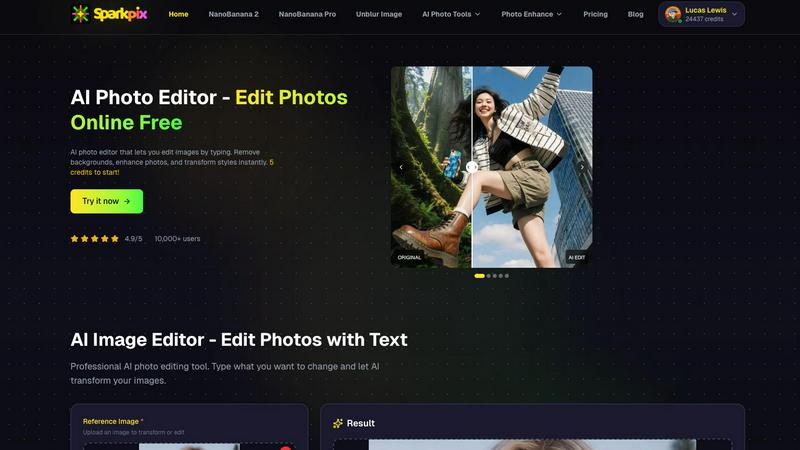
Discover what happens when you edit photos simply by typing your creative vision.
Last updated: March 11, 2026

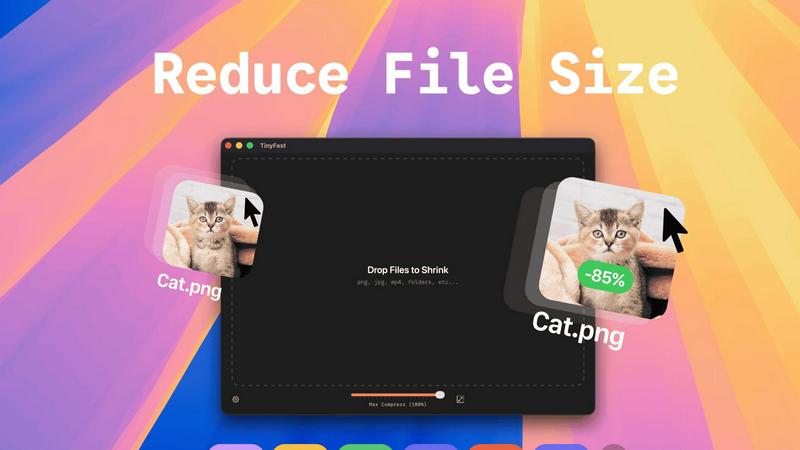
Discover how TinyFast privately shrinks your files on Mac with a simple drag and drop.
Last updated: February 28, 2026
Visual Comparison
SparkPix
TinyFast
Feature Comparison
SparkPix
AI Photo Editor (Text-to-Edit)
This is the heart of SparkPix's innovation. Instead of manually selecting tools, you simply type a descriptive command into a text box. You can instruct the AI to "remove the background and replace it with a beach sunset," "make the colors more vibrant," or "erase the trash can on the sidewalk." The AI interprets your natural language prompt and applies the corresponding edits, making professional-grade photo editing accessible to everyone without any prior technical knowledge or design skills required.
Background Remover
SparkPix offers a specialized, one-click solution for instantly isolating subjects. Its AI is trained to handle complex scenes with fine details like hair, fur, or intricate product edges. This feature is perfect for creating clean portraits with transparent backgrounds, preparing product images for e-commerce listings, or composing creative scenes by placing subjects into new environments, all without the tedious manual labor of traditional selection tools.
Photo Restoration & Enhancement
Breathe new life into old memories with AI-powered restoration. This feature can automatically repair scratches, tears, and stains on scanned photographs, reduce noise and grain, and intelligently colorize black and white images. Furthermore, the enhancer tool can sharpen blurry details, correct faded colors, and upscale images to higher resolutions, effectively combining multiple corrective actions into a single, powerful step to revive cherished historical photos.
AI Image Generator & Style Transfer
Unleash pure creativity by generating entirely new images from text descriptions at resolutions up to 4K. Beyond generation, you can transform any existing photo by applying over 15 artistic styles, such as converting a portrait into an anime character, a landscape into a watercolor painting, or a street photo into a pencil sketch. This allows for incredible artistic experimentation and content creation, enabling users to explore unique visual aesthetics with ease.
TinyFast
Blazing-Fast Local Compression
Discover the speed of processing files directly on your machine's hardware. TinyFast utilizes optimized native engines to shrink even large video and image files in mere seconds. There's no waiting for uploads to distant servers or downloads back to your device. This local approach means compression begins the instant you drop a file, turning what used to be a minutes-long ordeal into a task that finishes almost as soon as it starts, all while keeping your CPU busy instead of your internet connection.
100% Private & Secure Processing
Explore true digital privacy where your sensitive files are concerned. With TinyFast, every compression task happens entirely on your Mac. Whether you're working under an NDA, handling confidential client assets, or simply value your privacy, you can rest assured that your files never travel to the cloud or an external server. This "privacy by design" philosophy ensures that you are the only one who ever has access to your original and compressed files, providing unparalleled peace of mind.
Universal File Format Support
Delve into a tool that doesn't limit your creativity. TinyFast supports an extensive range of common file types, making it a versatile hub for all your compression needs. It seamlessly handles images (PNG, JPG, HEIC, WebP, GIF, SVG), videos (MP4, MOV, M4V), documents (PDF, DOCX), audio (MP3), and even code files (JS, CSS, JSON). This universal support means you can consolidate your workflow around a single, reliable tool instead of juggling multiple specialized websites or applications.
Simple Drag-and-Drop & Batch Processing
Experience a workflow so intuitive it feels effortless. TinyFast's entire interface is built around the simple action of dragging and dropping. You can drop a single file or an entire folder onto the app, and it will intelligently process everything in batch. This minimizes steps and eliminates complex settings for basic tasks, allowing you to compress dozens of files as easily as one. It’s designed to get out of your way and let you focus on your work, not on the tool.
Use Cases
SparkPix
Reviving Family Archives
Genealogists and family historians can use SparkPix to restore and colorize old, damaged photographs. By simply uploading a scanned image and prompting the AI to "restore this photo and remove scratches," users can preserve and enhance historical family portraits, making past generations appear clearer and more vibrant for future family trees and digital albums.
E-commerce Product Photography
Online sellers and small business owners can create professional-looking product images without a studio. They can use the background remover to get clean, white-background shots for Amazon or Shopify, or employ the AI editor to generate realistic mockups—like placing a phone case on a model's hand in a lifestyle setting—directly from a simple text prompt, drastically reducing photoshoot costs.
Social Media Content Creation
Bloggers, influencers, and social media managers can rapidly produce eye-catching graphics. They can remove unwanted photobombers from a perfect shot, transform personal photos into unique artwork for posts, generate custom illustrations for stories, or create perfectly framed profile pictures and YouTube thumbnails, all tailored to their brand's aesthetic with minimal effort.
Creative Exploration and Design
Artists, students, and hobbyists can use SparkPix as a sandbox for visual experimentation. They can explore how their photos would look in different art movements, generate conceptual art from written ideas, or quickly edit personal projects. It serves as an instant visualizer, turning abstract concepts into concrete images and fueling the creative process through playful and immediate feedback.
TinyFast
Preparing Assets for Web Development
Curious about optimizing your website's performance? Developers and web designers can use TinyFast to quickly compress images, SVGs, CSS, and JavaScript files locally before deployment. This reduces page load times without ever risking the exposure of proprietary code or design assets to third-party online services, ensuring a faster and more secure development cycle.
Securing Confidential Client Deliverables
What if you need to send a large project file but it contains sensitive information? Freelancers and agencies can leverage TinyFast to compress large video edits, high-resolution design mockups, or signed PDF contracts directly on their Mac. Since files stay local, they maintain client confidentiality and comply with data protection requirements while easily meeting email attachment size limits.
Streamlining Content Creation Workflows
Ever feel bogged down by huge video files from your camera? Content creators, bloggers, and social media managers can drag their raw MP4 or MOV footage into TinyFast for rapid compression before editing or uploading to platforms. This saves precious storage space, speeds up editing software performance, and reduces upload times, all while keeping unpublished content private.
Managing Personal Media Libraries
Exploring ways to free up space on your Mac? Anyone with a growing library of photos (HEIC, JPEG) and home videos can use TinyFast to efficiently reduce file sizes without noticeable quality loss. This allows you to archive more memories on your device or backup drives and makes sharing family videos via message or email a quick and simple task.
Pricing Comparison
SparkPix
SparkPix operates on a credit-based system. You can start completely for free by signing up, which grants you 5 credits with no credit card required, allowing you to test the service. For ongoing use, paid plans are available that offer larger bundles of credits. For example, one plan provides 350 credits for $9.99, offering significantly more capacity for edits and generations. The web-based platform works seamlessly on desktop computers, iPhones, and Android devices without requiring any software downloads.
TinyFast
TinyFast offers a straightforward pricing model designed to fit different usage needs. You can start exploring with the Free plan, which allows compression of up to 5 files per day with access to all features. For unlimited use, there are two paid options. The Lifetime Plan is a one-time payment of €17.99, granting unlimited local compressions, lifetime updates, and support for future development. Alternatively, the Monthly Subscription costs €2.99 per month (after a 3-day free trial) and also provides unlimited compressions and feature access. All plans process files locally on your Mac, ensuring privacy is maintained at every tier.
Overview
About SparkPix
Imagine having a professional photo editor's skill set at your fingertips, accessible not through complex menus and tools, but through the simple act of typing a request. SparkPix is that reality—a revolutionary web-based AI photo editor that transforms your words into visual edits. It's designed for anyone who has ever looked at a photo and thought, "I wish I could remove that person," "This background is too busy," or "I wonder what this would look like as an oil painting." From complete beginners intimidated by software like Photoshop to seasoned content creators needing rapid, high-quality edits, SparkPix democratizes advanced image manipulation. Its core value proposition is profound simplicity: you describe the change you envision, and its sophisticated AI interprets and executes your command, often in under 30 seconds. Whether you're restoring a precious family heirloom, creating a stunning thumbnail for your YouTube channel, or generating a completely new image from your imagination, SparkPix provides a powerful, intuitive, and accessible platform to bring your creative vision to life, starting with a generous free tier to fuel your initial exploration.
About TinyFast
Have you ever wondered what it would be like to compress a file without the tedious upload wait or the nagging worry about where your data ends up? TinyFast is the answer to that curiosity, a native macOS application built for the modern creator who values both speed and sovereignty over their digital assets. At its core, TinyFast is a powerful, local file compressor that handles a vast array of formats—from images like PNG and WebP to videos like MP4 and MOV, and even documents like PDFs. It’s designed specifically for developers, designers, and content creators who find themselves constantly needing to shrink files for emails, websites, or client deliveries. The magic lies in its simplicity and privacy: your files never leave your Mac. By processing everything locally, TinyFast eliminates the security risks and delays associated with online tools, offering a compression experience that is not only blisteringly fast but also completely confidential. It transforms a typically multi-step, uncertain process into a simple drag-and-drop action, empowering you to reclaim time and maintain full control over your work.
Frequently Asked Questions
SparkPix FAQ
How do I start using SparkPix?
Getting started is completely free and requires no download. Simply visit the SparkPix website from any desktop or mobile browser. You can sign up to receive 5 free credits instantly without a credit card. Upload your first image, type your edit instructions into the prompt box, and let the AI generate your transformed photo in seconds.
What can I do with the free credits?
The free tier provides 5 credits to explore the platform's core capabilities. Each credit typically allows for one AI edit or generation. This is perfect for trying out key features like background removal, basic photo enhancement, or a style transfer to see how the AI interprets your commands and understand the tool's potential before committing to a paid plan.
What is the difference between editing and generating?
Editing refers to making changes to an existing photo you upload, such as removing an object, changing the background, or applying a filter. Generating, or AI Image Generation, involves creating a brand new image from scratch based solely on a text description you provide, without needing a reference photo to start with.
Are my uploaded images private and secure?
SparkPix processes images to perform the requested AI tasks. It is advisable to review the platform's privacy policy for specific details on data handling, retention, and usage. For highly sensitive or confidential images, users should consider this before uploading, though reputable AI tools typically have measures in place to protect user data during processing.
TinyFast FAQ
Is TinyFast really free to use?
Yes, TinyFast offers a fully-featured free tier forever. You can compress up to 5 files per day at no cost, which is perfect for trying out the app or handling light, occasional compression tasks. This allows you to thoroughly explore its speed and privacy benefits before deciding if you need the unlimited capability of a paid plan.
What happens to my files during compression?
This is where TinyFast's core philosophy shines: absolutely nothing leaves your computer. The entire compression process is executed locally on your Mac's processor. Your original file is read, an optimized version is created, and both remain solely on your device. There is no upload, no cloud processing, and no external server involvement at any stage.
What file formats does TinyFast support?
TinyFast supports a wide and practical range of formats. This includes images (PNG, JPEG, TIFF, HEIC, WebP, GIF, BMP, SVG), videos (MP4, MOV, M4V), documents (PDF, DOCX), audio (MP3), and even code files (JS, CSS, JSON). This broad compatibility makes it a single, universal tool for most common compression needs across different projects.
Can I compress multiple files at once?
Absolutely! TinyFast is built for efficiency and supports both single-file and batch processing. You can drag and drop an entire folder filled with supported files into the app, and it will automatically compress them all in one go. This batch functionality is a huge time-saver when preparing multiple assets for a project or cleaning up a directory of large files.
Alternatives
SparkPix Alternatives
SparkPix is a web-based AI photo editor that lets you transform images simply by typing text commands. It belongs to the rapidly growing category of AI-powered creative tools, designed to make complex photo editing accessible to everyone without needing software like Photoshop. Users often explore alternatives for various reasons. Some may be looking for a different pricing structure, a specific feature not offered, or a platform that works natively as a mobile app or desktop software. Others might prioritize unlimited usage, higher output resolution, or a different style of user interface over the text-driven approach. When choosing an alternative, consider your primary needs. Are you focused on background removal, professional retouching, or artistic filters? Evaluate the cost per edit or subscription model, the quality of the AI outputs, and whether the tool integrates with your existing workflow. The best choice aligns closely with your most frequent editing tasks and budget.
TinyFast Alternatives
TinyFast is a macOS application that excels in the category of local file optimization tools. It's designed for users who need to quickly and privately shrink images, videos, and PDFs directly on their computer with a simple drag-and-drop action. People often explore other options for various reasons. Some may be seeking a different pricing model or a free tier, while others require support for additional file formats or specific advanced editing features. Platform compatibility is another key driver, as users on Windows or those needing web-based access will naturally look beyond a Mac-only solution. When evaluating other tools, consider your core needs. Prioritize whether absolute local privacy is essential or if you're comfortable with cloud processing for potentially greater compression. Also, assess the balance between automation and manual control—do you want a set-it-and-forget-it tool or one that offers granular settings for each file type?